
Understanding Video Bitrate — Why the Number Alone Doesn't Tell You the Quality
If you've ever exported a video and just left the bitrate at whatever the preset suggested — or bumped it up "to be safe" — you're not alone. It's one of the settings most people touch the least and worry about the most.
This post is a practical look at what bitrate actually controls, when raising it helps, and when it stops doing anything at all.
Bitrate Is "How Much Data per Second"
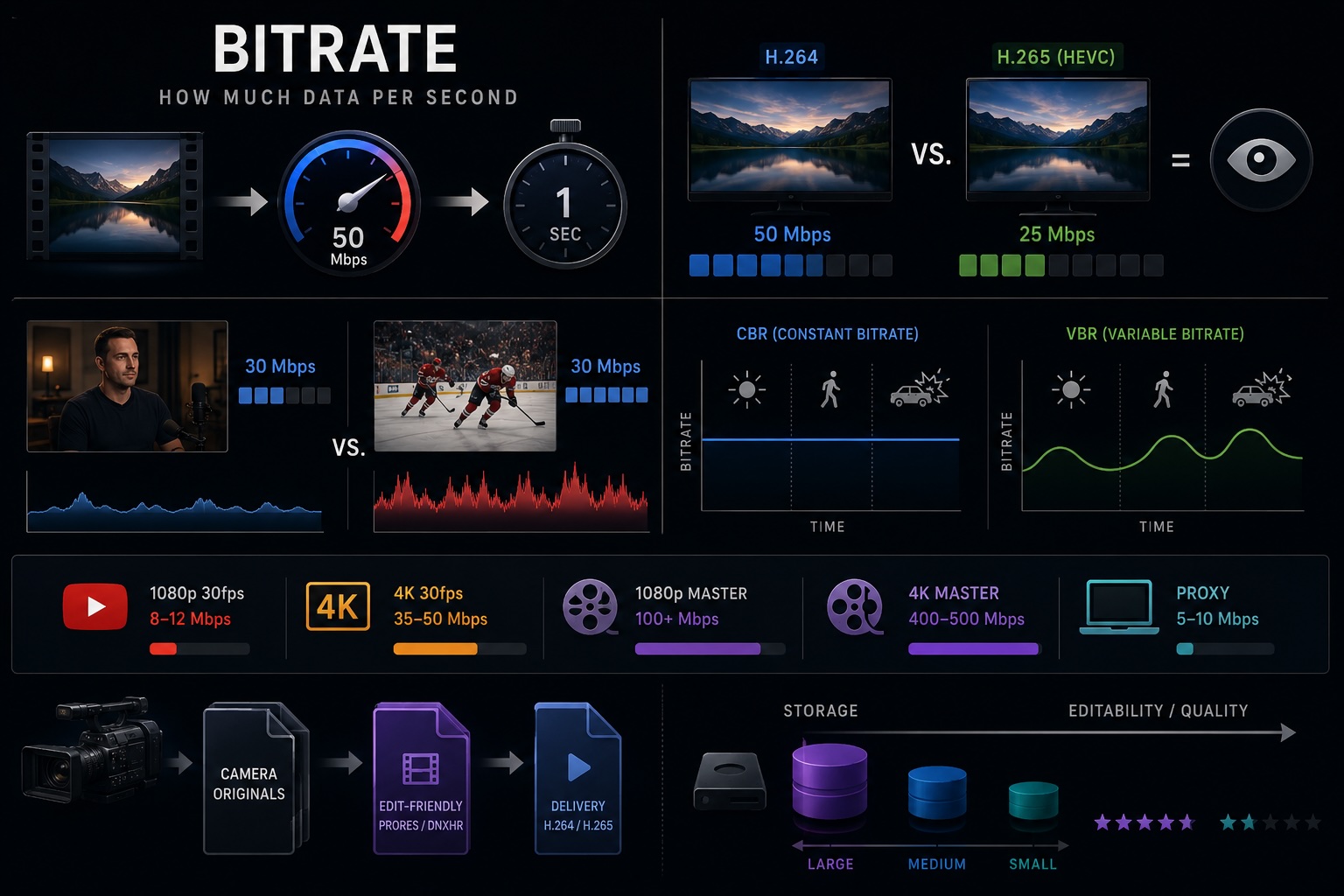
Bitrate, at its most literal, is the amount of data allocated to one second of video. The usual unit is Mbps (megabits per second).
- 50 Mbps of 4K = 50 megabits ≈ 6.25 megabytes per second
- A 10-minute clip at 50 Mbps ≈ 3.75 GB
That's just arithmetic. The interesting part starts when you notice that two videos at the same Mbps can look very different.
Why More Bitrate Isn't Always More Quality
Bitrate is a ceiling for data, not a measurement of quality. What you actually see on screen is the combination of bitrate, codec efficiency, and how complex the footage is.
A couple of examples:
- H.264 at 50 Mbps and H.265 (HEVC) at 25 Mbps look about the same. Newer codecs are designed to reach the same picture using less data.
- A quiet interview and a hockey game both at 30 Mbps will look different. The fast-moving one is far more likely to fall apart into block artifacts. The more motion in a frame, the more data the codec needs.
The upshot: doubling the bitrate doesn't double the quality, and past a certain point it stops changing anything visible. What matters is whether the bitrate is enough for the codec, resolution, and motion you're pushing through it.
CBR vs VBR
There are two strategies for spending your bitrate budget.
| CBR (Constant Bitrate) | VBR (Variable Bitrate) | |
|---|---|---|
| Distribution | Same across all frames | More on hard scenes, less on easy ones |
| Efficiency | Average | Better |
| Predictable file size | Yes | Roughly |
| Best for | Live streams, fixed bandwidth | Exports, archives |
Live streaming wants CBR — the bandwidth pipe is fixed, so a consistent feed matters more than peak efficiency. For exports, VBR (especially 2-Pass) wins almost every time. 2-Pass takes about twice as long but spends the budget more intelligently. For a final delivery the wait is worth it; for review copies, 1-Pass is fine.
Reasonable Numbers by Use Case
There's no single right answer, but here are the ranges most editors actually use. These assume H.264 — if you're using H.265, you can roughly halve them.
- YouTube 1080p, 30fps — 8–12 Mbps
- YouTube 4K, 30fps — 35–50 Mbps
- 1080p master (ProRes 422 etc.) — 100+ Mbps
- 4K master (ProRes 422 / DNxHR HQ) — 400–500 Mbps
- Proxy editing — 5–10 Mbps
The huge gap between "master" and "delivery" is intentional. A master file holds enough overhead that you can grade, crop, and re-export without watching the image fall apart. Once you've exported at 8 Mbps H.264, you can never get back to a clean high-quality version.
A Note on Archiving
If you're thinking long-term, the question isn't really bitrate — it's which codec you keep.
- Delivery codecs (H.264, H.265): great for storage size, painful to re-edit.
- Edit-friendly codecs (ProRes, DNxHR): heavy on disk, kind to your timeline.
- Camera-original (XAVC, H.265 from the camera): the realistic middle ground for most people.
If you expect to come back to old footage — which is exactly what tools like VideoTagger are built for — the most balanced approach is to keep camera originals as-is and transcode to an edit-friendly codec only when needed. You get reasonable storage now and full flexibility later.
VideoTagger Surfaces These Numbers Automatically
VideoTagger analyzes every video added to its library and shows the overall and video-track bitrate, codec, resolution, and frame rate in its file info panel — no opening clips one by one in a media player just to check.
Library-wide filters cover codec, resolution, frame rate, duration, and file size, so pulling out "everything at master quality" or "every clip that matches a specific delivery spec" is a quick query across the whole library rather than a manual scan.
Wrapping Up
A bitrate number on its own doesn't tell you whether the video will look good. You need four pieces together: codec, resolution, motion, and intended use. Once those are in view, "enough" versus "wasted" becomes obvious.
When in doubt, decide the use case first. Streaming, master, or proxy — the bitrate setting follows naturally from there.
Related articles
Choosing a Video Codec — H.264, H.265, ProRes, and DNxHR in Plain Terms
If you've been exporting everything as H.264 by default, you're leaving choices on the table. Delivery codecs and edit codecs are built for opposite goals — here's how to pick the right one for capture, editing, delivery, and archive.
Video Resolution, Explained — SD, HD, 4K, 8K, and What More Pixels Actually Buy You
"4K" is on every camera box and TV shelf, but resolution is the most misread number in video. Here's what the tiers from SD to 8K actually are, why DCI 4K and UHD aren't the same thing, why more pixels don't guarantee a sharper picture, and when they genuinely pay off.
HDR, Explained — HDR10, Dolby Vision, HLG, and What "High Dynamic Range" Actually Means
HDR is sold as "brighter, more vivid" — but that marketing hides what's really going on. Here's what dynamic range actually is, why HDR needs PQ or HLG curves and 10-bit color, and how HDR10, Dolby Vision, and HLG differ in one sitting.